

Start and finish a job from your phone
The technician guide: head out, start the job, capture what the office needs, and complete it, with or without a signal.
On this page
Before you start
- You are signed in to the Ormi Field app. See Install the Ormi Field app and sign in.
- The job is assigned to you. Assigned jobs appear under Jobs and on Today.
1. Head out
- Open the job from Today or Jobs.
- Tap On My Way. Review the customer-notification status and choose whether to Open Maps. Confirm with Mark On My Way, or Mark On My Way & Open Maps when offered.
- If asked, allow location. Live sharing lets the office and customer see your ETA, and it only runs from On My Way until you start the job.
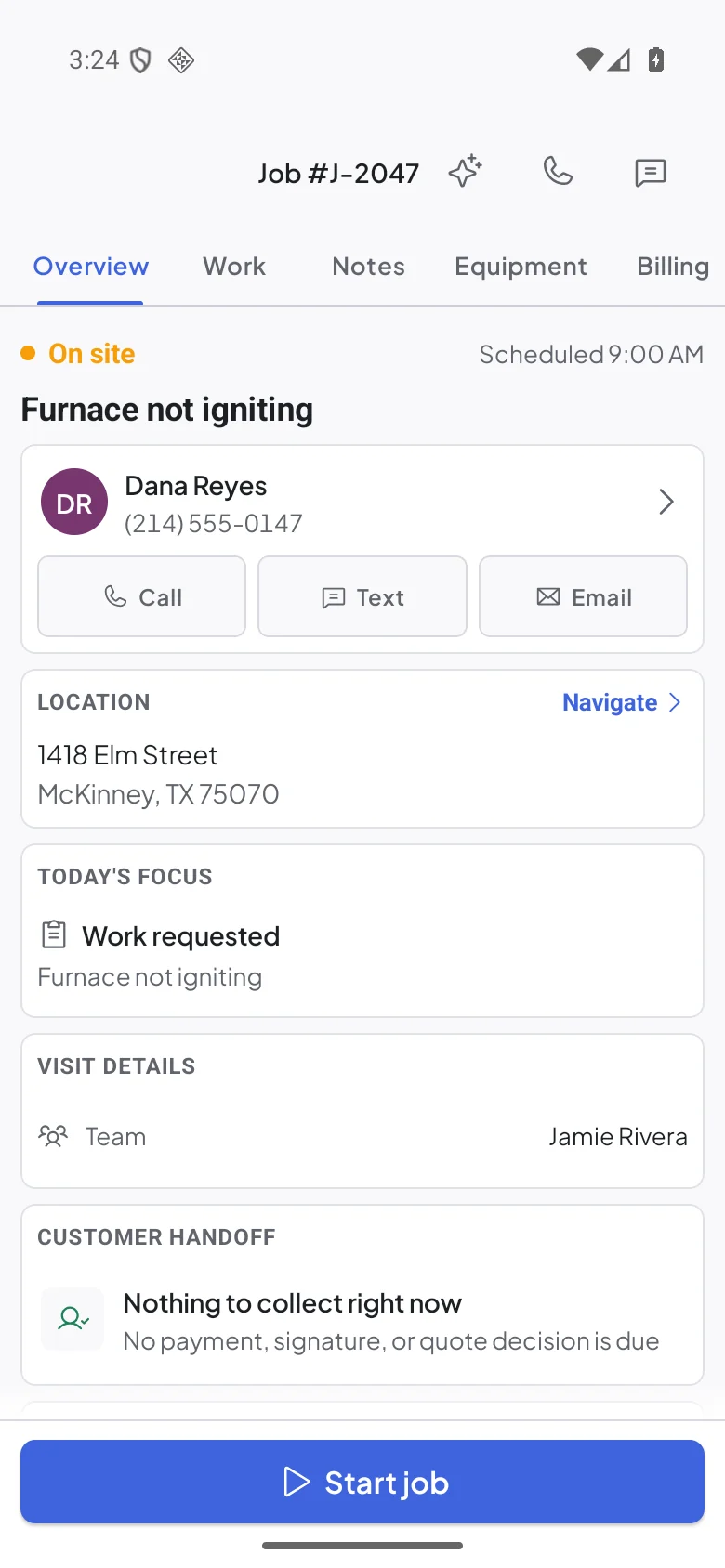
2. Start the job
- On site, tap Start job, then Start to confirm.
- The job timer starts and live location sharing stops. You will see "Job started".
3. Capture the work
- Photos: on the Work tab, take photos and tag them Before, During, After, Damage or Completion.
- Notes: Add a note, and choose Internal or Customer-visible.
- Parts: Add product under Products & materials.
- Forms: open any required form and tap Submit form.
- Signature: the customer enters their Full name, signs, and you tap Adopt and save signature.
4. Complete it
- Check the bar at the bottom. If it says "items left before you can finish", tap Review N Items (N is the number left) and do each one.
- Tap Complete Job.
- Choose Full completion, Partial completion (more work needed) or Couldn't complete today.
- Submit with Complete Job, Save partial & continue or Log & return to route.
No signal on site?
Keep working. Status changes, photos, notes, signatures, forms, parts and cash or check payments are saved on the phone and sent when you reconnect. The job shows Pending sync until then. See Work offline.
What if this fails?
- "Customer signature is required" (or a form, note, photo or time) when I tap Complete Job.
- Your company requires it before a job can be completed. Add the missing item and tap Complete Job again. See What a job needs before it can be completed.
- The job is not in my list.
- Pull down on Jobs to refresh. If it is still missing, it is not assigned to you; ask your dispatcher. See A technician can't see a job.
- "Job started · sync pending".
- You are offline. The start is saved and will send when you reconnect. Carry on.
Was this article helpful?
Feedback helps improve this guide. For help with your account,contact support.
Still stuck?
Already using Ormi? Open Help and support (the ? at the top of the office app) to message our team with your account attached. Or reach us directly: